

TARIFFS
WTO Tariff Analysis Online (TAO)
Tariff Analysis Online is for researching and analysing tariff data maintained in two WTO databases: the Integrated Database (IDB, which contains general information on applied tariffs and imports) and Consolidated Tariff Schedules (CTS, which includes members’ binding commitments on maximum tariffs). The information was made available to the public in February 2010, following the Market Access Committee’s decision to allow public access to the two databases.
How does Tariff Analysis Online work?
Users ask Tariff Analysis Online some questions — the “queries” — which produce some answers — the “reports”. The answers can be viewed and manipulated online or downloaded and printed.
A query contains a set of selection criteria, which can be saved or built on the fly. The options can be seen in the image below. Before seeking an answer (a report), the user must choose either a pre-built query or create a new one. The criteria comprise an import market for a given year along with a group of products, which can be one, several or all products defined under the Harmonized System’s nomenclature and classification. Frequently-used products can also be saved as a set. Queries and sets of products can therefore be created, named and modified for re-use, or deleted if no longer needed.
When you first enter the facility, you are presented with a choice of available reports, which can be about applied duties and trade data, or bound commitments:
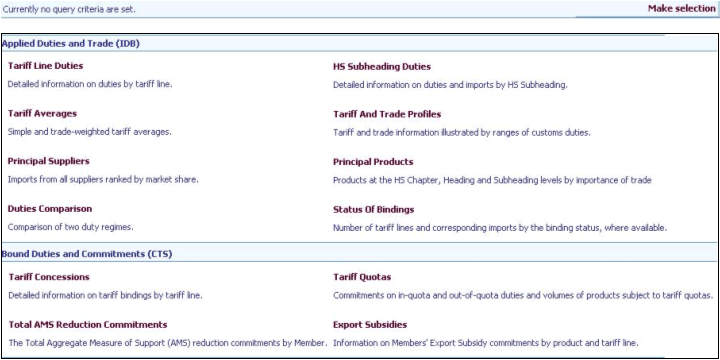
Click on <Make selection> (or on any report) and you will be prompted to select a market and year, or you can use a saved query. The default for product selection is All products. To select individual products, click on Uncheck all and then select the desired products. The product tree can be expanded to a greater level of detail by clicking on the cross to the left of the product. More information on selecting products can be found below.
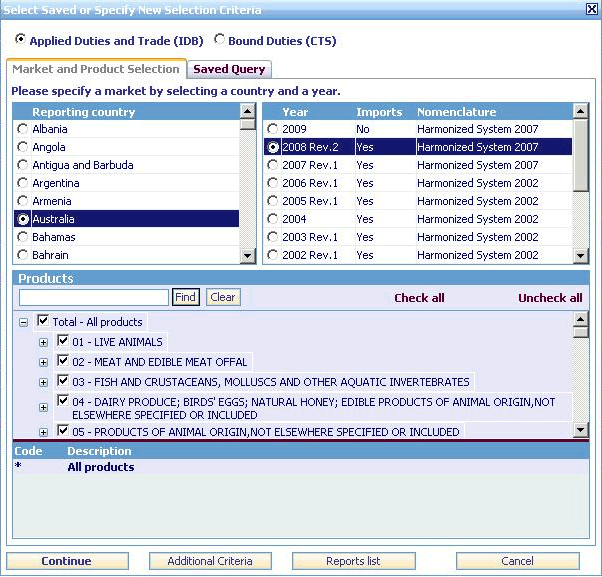
Click on <Continue> to return to the report list (or to compile the report previously selected). <Continue> will always bring you back to the page previously displayed. <Additional criteria> will bring you to the extended selection panels where you can apply tariff and trade criteria to your query and/or save your query along with the selected products for further use. <Report list> will take you to the report page.
If you use this basic selection to change the reporting country after having compiled a report, your selected products will remain unchanged, unless the year selected is in a different nomenclature than that previously selected (the Harmonized System’s code numbers are updated periodically and countries apply the updates to their own tariffs and trade shortly afterwards). In that case, the default of “All products” will be applied and you will need to redo your product selection.
Functions and features
This is the menu on the left of the window, with explanations of the available choices:
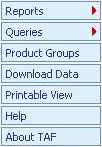 |
“Reports” Click directly on <Reports> to view the report page or expand the selection to bound or applied (tariffs) and the available reports. Click on a report to compile it. You will be prompted to create a new query or select an existing one. |
When viewing any report, two functions are available at the top right of the window — <Download Data> and <View in PDF>.

The download function allows you to export the report data in Excel, XML, or text format. The PDF format can be used for printing the report.
“Queries” Click directly on <Queries> to view or edit saved queries. Expand the query button (New IDB query or New CTS query) to create a new query. (IDB queries produce reports on applied tariffs and imports from the Integrated Database. CTS queries produce reports on members’ commitments from the Consolidated Tariff Schedules database.)
“Product groups” Click on this button to view, create or modify the product groups you want to use in your query.
“Download data” Click on <Download data> to export the replies of your queries — ie the report data — to a file. Choose a report, the file type for the data you are exporting (ie, Excel, XML or text) and enter a file name for your exported data. Then click the <Export> button on the top right of the window. Click the <Refresh> button to see the status of your download. Click on the file name or the download icon to download the file to your computer.
“Printable view” Printable view allows you to view or print any window in portrait PDF format without showing the menu bars on the left hand side of the window. You can use the browser’s Back and Forward buttons to navigate when in printable view. Click on <Full navigation> to return to the normal format.
Query management
Queries can be managed in the <Extended query> option. At the top of the window, enter a name for the query and optionally a description.

 You
need to select at least a reporting country and products. Then click
on <Save Query>. If you are changing a previously saved query
you can use <Save as Copy> to save under a new name with any
changes made to the original query.
You
need to select at least a reporting country and products. Then click
on <Save Query>. If you are changing a previously saved query
you can use <Save as Copy> to save under a new name with any
changes made to the original query.
Product groups
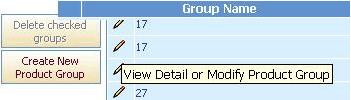
There are two ways to work with product groups. The first is to click on <Product Groups> on the left side of the window. A list of the saved product groups will be presented. Click on the pencil (“Edit” icon) on the left to view or edit a product group. Or click on <Create New Product Group> on the left to create a new one.
The second is to click on the Selected Products tab in the <Extended query> option. To create a new product group, select <<New product group>> from the dropdown list and enter a Group Name for the products. Click on the check box to the left of the product to add the product to the panel below. Uncheck a product to remove it. Click on the <Save Query> button to save the query and the product group. If the product group is not saved, it can still be used to compile reports.
To create a new product group, select <<New product group>> from the dropdown list and enter a Group Name for the products. Click on the check box to the left of the product to add it to the panel below. Uncheck a product to remove it. Click on the <Save Query> button to save the query and the product group. If the product group is not saved, it can still be used to compile reports.
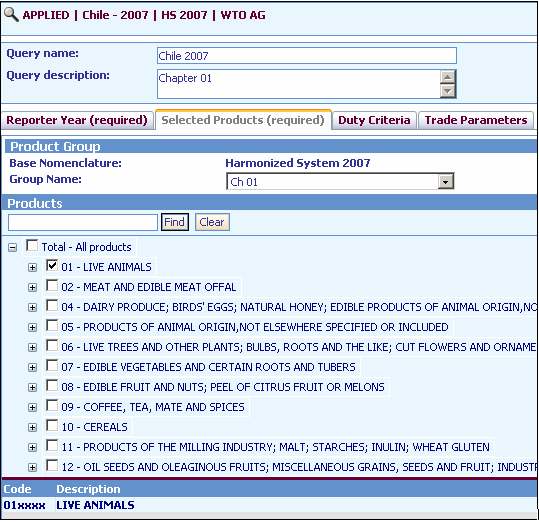
Saved product groups:
To use a saved product group, click on the <<Select product group>> dropdown list and select a group.
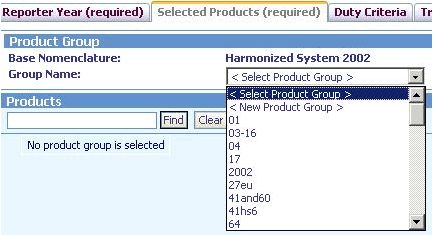
Alternately, click on <<New Product Group>> to create a new one.
Viewing a query
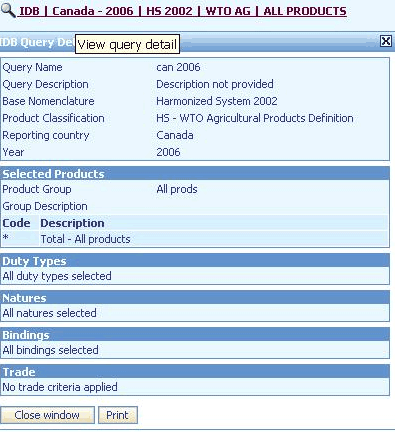
Click on the summary query parameters at the top of the window to view the query parameters.
|
Jargon buster
|
How to …? Tips on extracting data
How to use Duty Criteria and/or Trade parameters to select specific tariff lines
Note that the optional duty and trade criteria options are based on the entire file (all products). If the criteria specified does not apply to the products that have been selected, a message will be shown saying, “No tariff lines available for the selected product”.
|
Tariff lines are selected according to the criteria specified as follows. Some of the criteria can be combined with “and”, the Boolean operator: |
|
Evaluation of duty criteria:
Data element (if specified) |
Criteria for selection |
Boolean operator |
Nature of duty |
Nature of duty, for any duty, for the tariff line equal to that checked |
AND |
Binding |
Any binding checked |
AND |
Duty values |
Any duty type checked for which the duty value falls within the value range or threshold specified |
|
AND |
||
Evaluation of Trade Parameters:
Data element (if specified) |
Criteria |
Boolean operator |
Partner |
Trade exists for selected partner (or, if specified, no trade exists for partner) |
AND |
Trade threshold |
Partner import value meets threshold specified |
AND |
Share / Rank |
Partner falls within share OR rank specified |
|
How CTS tariff lines are selected when using Duty Criteria:
Tariff lines in the Consolidated Tariff Schedules (countries’ lists of tariff commitments) are evaluated according to the duty criteria specified as follows. “MFN” or “most-favoured nation” means standard non-discriminatory or non-preferential tariffs. Where tariff quotas apply, the “MFN” tariffs are the rates for quantities outside the quotas. “Bindings” are committed maximum tariff rates:
Data element (if specified) |
Criteria |
Boolean operator |
MFN Bound duty |
Bound duty value falls within the value range or threshold specified |
AND |
Bound duty nature |
Nature of bound duty for the tariff line equal to that checked: ie, whether ad valorem (percentage of the price) or something different |
AND |
Bound duty binding |
Bound duty binding equal to any binding checked |
AND |
MFN base duty |
Base duty value falls within the value range or threshold specified |
AND |
Base duty nature |
Nature of base duty — ie, whether ad valorem (percentage of the price) or something different — for the tariff line equal to that checked |
AND |
Base duty binding |
Base duty binding equal to any binding checked |
AND |
SSG/EX |
Tariff line is SSG (special agricultural safeguard) item if checked AND tariff line is EX item if EX checked. (EX or “ex-out”: see jargon buster on page 6) |
AND |
Binding |
Any binding checked |
AND |
Present instrument |
Any instrument checked |
AND |
Implementation period |
Any implementation period checked |
|
How to identify high tariffs:
After having selected the desired products using the Selected Products panel in the Queries window, execute the Tariff and Trade Profiles Report to identify duty ranges (either summary, detail or user-defined) where high tariffs occur. Next, go to the Duty Criteria panel in the Queries window and select the desired duty. Enter the duty threshold (eg, 15) in the Value From column. Then compile the Tariff Line Report to view the tariff lines where high tariffs occur.
Some tariff lines use the “tariff suffix”
to record different duties for a given tariff line where the import
statistics are not broken down according to the different duty levels. Note
that for those tariff lines where the tariff suffix is used, if the duties
of any of the member tariff lines (suffix 01-99) fall within the duty
threshold, all tariff lines (tariff suffix 00-99) for the tariff item will
be selected. An example is the following case:
| Duty threshold: | 15 % |
Tariff line-Suffix |
Duty Rate |
| 0501.10.10-00 0501.10.10-01 0501.10.10-02 |
% (simple average of the member
lines) 15.5% 10.5% |
Although the duties for suffix 00 and suffix 02 are less than the specified duty threshold, they are selected because the duty for suffix 01 is higher than the specified threshold. Also note that the imports for the tariff line are recorded at the level of the principal item (tariff suffix 00).
How to identify products with high values of imports, either for a specific trading partner or as a whole:
There are two ways to do this. You can compile the Principal Products Report for all products or for a selection of products. If you are interested in products for a particular trading partner, first go to the Trade Parameters panel of the Queries window and select the desired trading partner. Then compile the Principal Products Report.
Alternately, use the Trade Parameters panel to select the partner and enter the value threshold. Next compile the Tariff Line Report. You can also compile the Tariff Averages Report to obtain the total number of tariff lines and aggregated imports for your selection.
How to identify beneficiaries of specific trading regimes:
Execute the Principal Suppliers Report. Select an aggregate from the drop-down list based on the trading regime: MFN (most-favoured nation or normal trading), free-trade area, other preferential agreements, GSP (generalized system of preferences) total, LDC (least developed countries) total, general.
Then click on the partner drop-down list to see whether the partner is included in the list. Note that there are two aggregates for LDCs (least developed countries). The first is based on the reporting country’s LDC definition which may differ from the second, a standard definition (labelled Least Developed Countries in the drop-down list) for all markets.
How to identify unbound items:
Use the Duty criteria panel to check Unbound duties (binding code “U”; note that the binding codes are not recorded for some reporting countries). Next compile the Tariff Line Report to view the unbound items. You can also compile the Tariff Averages Report to obtain the total number of tariff lines and aggregated imports for your selection.
How to identify products for which a particular trading partner is one of the main suppliers:
Select the partner in the Trade parameters panel and then use the share or rank criteria to identify products for which the selected trading partner is a main supplier. Next compile the Tariff Line Report to view the selected items. You can also compile the Tariff Averages Report to obtain the total number of tariff lines and aggregated imports for your selection.
How to identify the duties recorded for a particular reporting country:
The Duty Criteria panel shows the duties recorded for the reporting country. Beneficiaries of preferential trading schemes can be identified by clicking on the magnifying glass icon to the right of the duty.
How to select tariff lines with preferential treatments:
Execute the Duties Comparison Report. Select an MFN (ie, non-preferential) duty for Duty Type 1 and a preferential duty for Duty Type 2. Then click on the text “Duty1 > Duty 2”. You will be presented with a list of all tariff lines where the MFN duty is higher than the selected preferential duty
Why do the unit values shown in the Tariff Line report and the Principal Suppliers report sometimes not match my manual calculations?
Unit values are calculated by dividing the total import value (in US dollars, usually CIF) by the quantity traded. Some members provide the quantities with decimal fractions, depending on the unit used for recording quantities. For instance if the quantity unit was metric tonnes (1,000 kg), a quantity of 150 kg would be recorded as 0.15. The decimal places for quantities are not shown in the reports. To calculate the actual quantity provided, divide the import value (in units) by the unit value.
Why are the number of tariff lines always the same in the summary reports regardless of the duty type selected?
Most analyses are compiled on the basis of a specified type of duty. Many users ask why the number of lines are always the same regardless of the type of duty selected. This is because when some types of preferential duties are not granted for all tariff lines, the query procedure selects the next best option. For instance, if you wish to compare the tariff averages for generalized system of preferences (GSP) duties with the tariff averages for most-favoured nation (MFN, ie, non-preferential) applied duties, for those tariff lines not benefiting from GSP treatment, the item would receive MFN treatment. For such items, the MFN duty would be used as a default duty. Default duties are assigned as follows:
for WTO current bound duties (duty type 01), if the tariff line is unbound, the MFN (most-favoured nation or normal) applied duty (duty type 02) would be used;
for MFN applied duties (duty type 02), if not recorded, the WTO current bound duty (duty type 01) would be used;
for MFN temporary duties (duty type 03), if not recorded, the MFN applied duty (duty type 02) would be used or, if not recorded, the WTO current bound duty would be used;
for GSP (generalized system of preferences) duties (duty types 40-49), if not recorded, the following duty types would be used by default if recorded: duty type 03 or duty type 02 or duty type 01.
for LDC (least developed countries) duties (duty type 50), if not recorded, the following duty types would be used by default if recorded: duty type 40 or duty type 03 or duty type 02 or duty type 01;
for General duties (duty type 80), if not recorded, the following duty types would be used by default if recorded: duty type 03 or duty type 02 or duty type 01.
for other preferential duties (FTA ie free trade area, ZONE, Other preferential — duty types 10 — 39), if not recorded, the following duty types would be used by default if recorded: duty type 03 or duty type 02 or duty type 01.
To see the tariff lines that are accorded a particular type of duty, for instance GSP duties, use the Duty Criteria panel to select the GSP duty and then compile a summary report to see the number of lines where the GSP duty is accorded or the Tariff Line Report to see the GSP items.
On the web:
http://tariffanalysis.wto.org
E-mail: [email protected]